
AI Tools Expert & Founder
Quick answer
How do you check where your website ranks for keywords in Google?
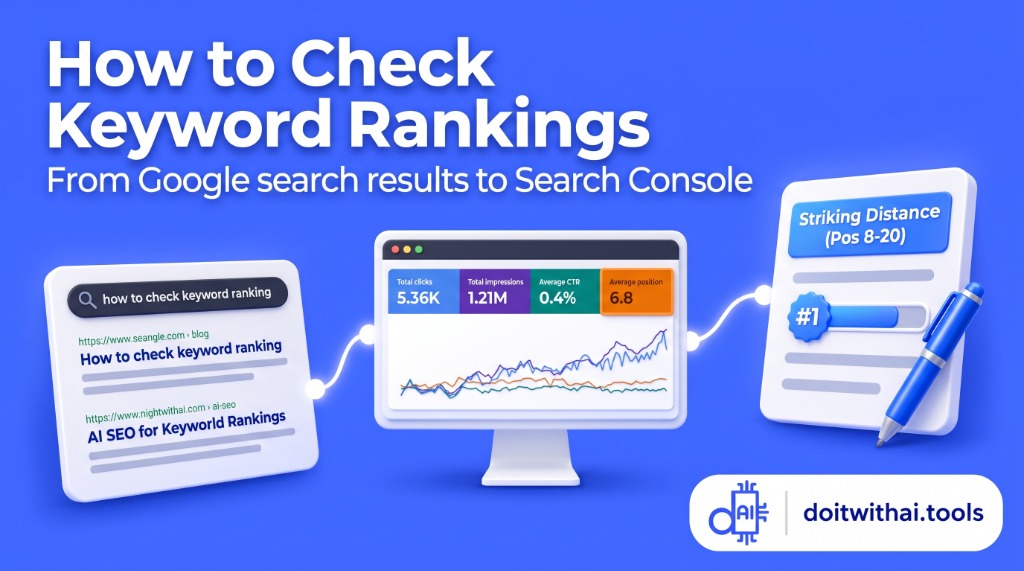
For your own website, open Google Search Console → Performance → Search results, enable Average position, and filter the Queries table by country and page. For a live public lookup on any domain, use a depersonalized SERP checker. To turn Positions 8–20 into immediate clicks, upload your Search Console CSV into the free GSC Striking Distance Keyword Finder.
Table of Contents
- Zone 1: Positions 1–10 with Low CTR (<2%) — Fix Your Snippet Packaging
- Zone 2: Positions 8–10 with Healthy CTR — Strengthen Topical Authority & Internal Links
- Zone 3: Positions 11–15 (Top of Page 2) — Add Answer-First Sections & Schema
- Zone 4: Positions 16–30+ — Fix Search Intent Mismatches & Keyword Cannibalization
To check where a website ranks for specific keywords on Google, use three main approaches depending on whether you need a free, accurate internal audit of your own website, a quick public lookup in live search results, or automated competitor tracking:
- For a website you own (Most Accurate & 100% Free): Open Google Search Console, click Performance → Search results, toggle on the orange Average position metric card, and scroll down to the Queries table to see every keyword real users typed to find your pages.
- For a quick live lookup on any domain (30 Seconds, No Login): Enter your URL, target keyword, and country into a depersonalized live SERP checker to inspect the current top 100 organic positions without account setup.
- For turning Page-2 rankings into immediate clicks (60 Seconds, Free Browser Tool): Export your Search Console queries and drop the file into the free GSC Striking Distance Keyword Finder on Do It With AI Tools to isolate every keyword ranking between Positions 8 and 20 with high impressions and low click-through rates (CTR).
If you just finished building your keyword list and haven't mapped or published your pages yet, start with the companion workflow guide on What to Do After Keyword Research: Turn Your List Into a Content Plan. Once your pages are live, use the methods below to track and grow your rankings.
Comparison of the Ways to Check Keyword Rankings in Google
| Ranking Check Method | Best Used For | Cost | Data Source & Accuracy | Time Required |
|---|---|---|---|---|
| Google Search Console | Checking all keywords your own verified website ranks for over time | Free | Direct from Google's real search impression logs (16 months of history) | 2 minutes |
| GSC Striking Distance Finder | Filtering your GSC export for Positions 8–20 quick wins and low-CTR pages | Free | Exact match to your exported GSC CSV/ZIP (runs 100% locally in browser) | 30 seconds |
| Public Live SERP Checkers | Spot-checking 1–10 specific keywords on any website or competitor right now | Free | Exact for 1 depersonalized search in 1 selected country at 1 moment | 30 seconds |
| Dedicated Scheduled Rank Trackers | Daily automated tracking of fixed keyword lists, local ZIP codes, and competitors | Paid | Scheduled daily SERP snapshots across desktop and mobile | 10 minutes setup |
| Manual Browser Search (Incognito Mode) | Visually inspecting SERP layout (AI Overviews, videos, ads) | Free | Low accuracy for position numbers (still biased by IP location and device) | 1 minute |
Method 1: The Best Free & Most Accurate Option — Google Search Console (GSC)
If you own or manage the website you want to check, Google Search Console is the gold standard for checking keyword rankings. Unlike third-party rank trackers that simulate a single search from one server location, Search Console records the exact queries real people typed into Google and where your page appeared across millions of live searches.
Step-by-Step: How to Check Your Keyword Positions in GSC
Follow these five steps to see every keyword your site ranks for and your exact position for any target phrase:
- Step 1: Log in to your Google Search Console dashboard: Open Google Search Console and select your verified Domain property (
yourdomain.com), which tracks all subdomains and bothhttpandhttpsURLs in one place. - Step 2: Open Performance → Search results: In the left-hand navigation sidebar, click Performance (or Search results). By default, Google displays the last 3 months of organic web search data.
- Step 3: Toggle on the "Average position" metric card: At the top of the main performance chart, you will see four colored metric boxes: Total clicks, Total impressions, Average CTR, and Average position. Click Average position (highlighted in orange) and Average CTR (green) so all four metrics are active.
- Step 4: Scroll down to the "Queries" table: Below the graph, make sure the Queries tab is selected. You will now see a complete table of search terms your website appeared for, alongside the exact Clicks, Impressions, CTR, and Position for each keyword.
- Step 5: Filter by a specific keyword, page, country, or device: Click
+ Add filter(or+ New) right above the chart: choose Query → Queries containing to check your ranking for one specific keyword cluster; choose Page and paste a single blog post URL to see every keyword that specific article ranks for; and choose Country and Device to see your true ranking in your target market (such as United States on Mobile vs. Desktop).
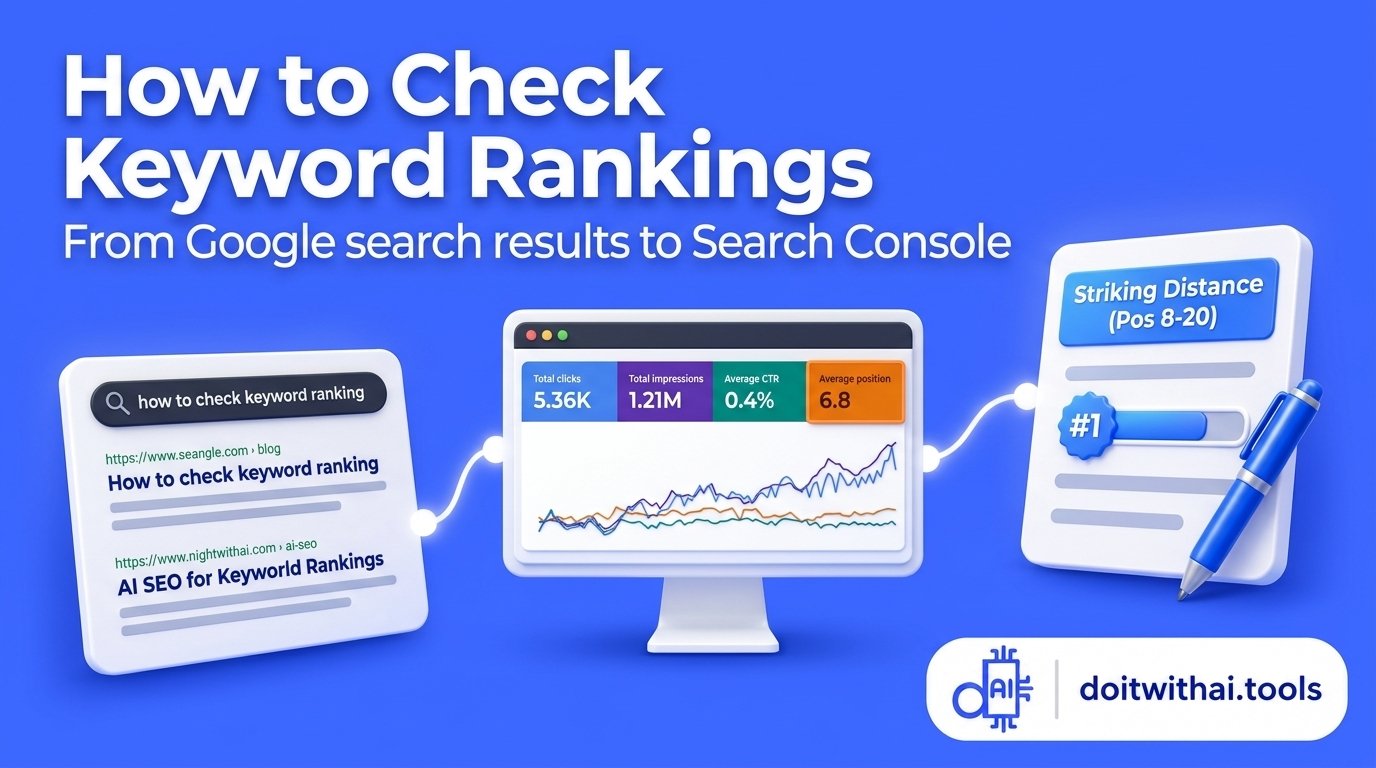
Monitor your true search visibility in Google Search Console with the Average Position card enabled alongside Impressions and Clicks.
Why Unfiltered "Average Position" Can Mislead You (Real Data Example)
The biggest mistake site owners make inside Search Console is looking at the single Average position number at the top of the screen without adding a Country or Query filter. Because Google averages your ranking across every country in the world, strong rankings in one region can hide weak rankings in another—or vice versa.
Here is a real 3-month snapshot from the Do It With AI Tools Search Console property showing how drastically the same website's average position shifts across countries:
Real 3-Month Google Search Console Country Breakdown (Do It With AI Tools Audit)
| Country Filter in GSC | 3-Month Impressions | 3-Month Clicks | Average Position in GSC | What the Number Actually Means |
|---|---|---|---|---|
| Nigeria | 224 | 0 | 8.97 (Page 1) | Queries appearing in Nigeria rank on the first page on average |
| India | 4,383 | 21 | 19.35 (Page 2) | Strong Page-2 visibility across 4,300+ searches |
| United States | 7,600 | 1 | 41.45 (Page 5) | High impression volume, but mostly ranking on Pages 4–5 in the US |
| United Kingdom | 1,507 | 1 | 62.59 (Page 7) | Early indexation stage for broader high-difficulty keywords |
If you only look at the unfiltered global chart, you get a blended number around Position 38 that doesn't reflect any real searcher's screen. Always click + Add filter → Country and select your primary target audience before judging your rankings.
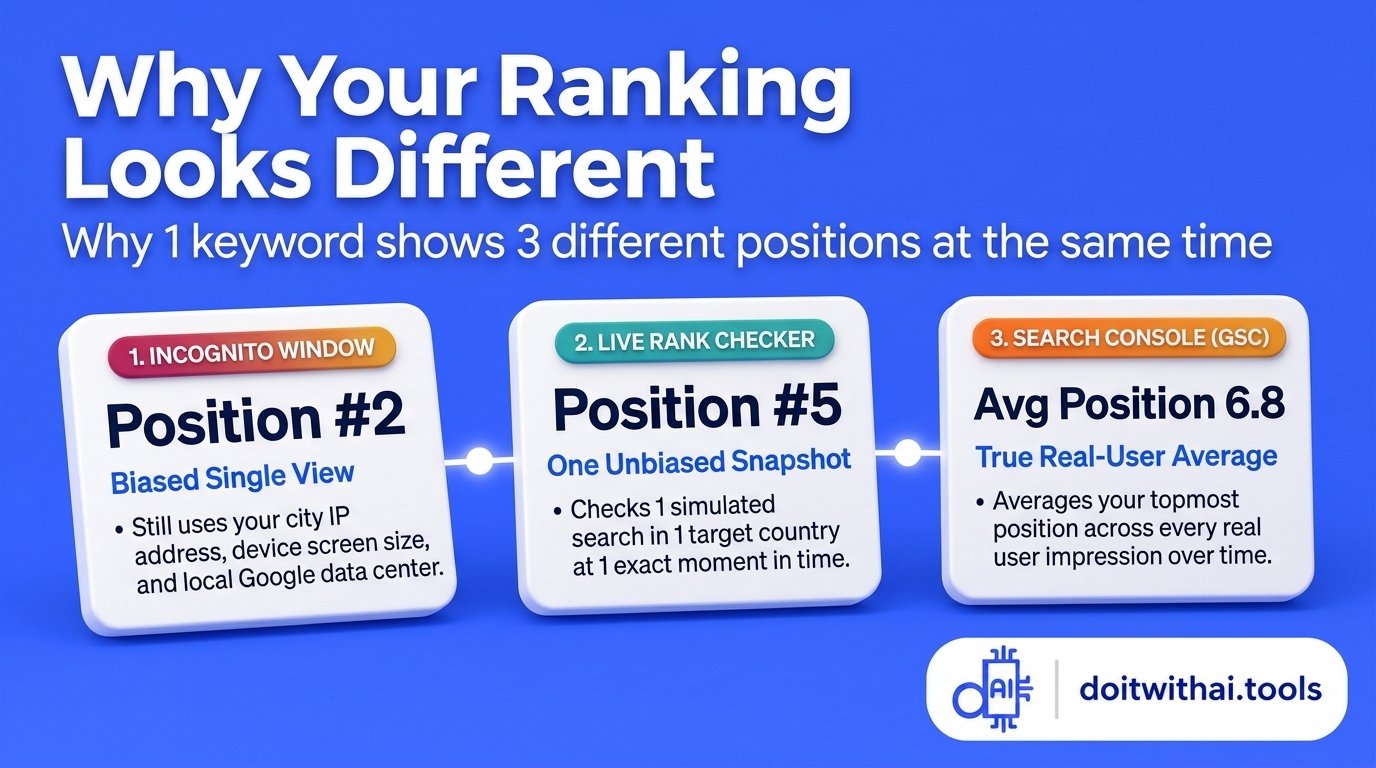
Why rankings fluctuate: local data centers, country filters, and device types create wildly different search results for the same query.
4 Google Search Console Ranking Traps to Avoid in 2026
When you audit your rankings in Search Console, keep these four platform quirks in mind so you never misread your progress:
- Trap 1: Your sitewide Average Position drops right after you publish great content. Site owners frequently worry when their overall Average Position drops from
20to45while impressions go up. This happens because your new articles just started ranking at Positions50–85for hundreds of brand-new keywords you never ranked for before—which pulls down the sitewide math average even while your core pages are climbing. - Trap 2: Two of your own URLs are splitting rankings for the same keyword (Cannibalization). Search Console's Average Position records the topmost result from your site for each search. If you filter by a single keyword and click the Pages tab, and you see two or three of your own blog URLs sharing impressions for that same phrase, your pages are competing against each other. Run your export through the free Keyword Cannibalization Finder on Do It With AI Tools to spot and resolve competing URLs.
- Trap 3: The 1,000-row UI limit and "anonymized queries." The Search Console web table only displays up to
1,000query rows and hides rare, low-volume searches for user privacy. That is why adding up the clicks in the table never equals the total clicks shown on the top chart. - Trap 4: Automated scraping fluctuations. In late 2025, changes to automated scraping parameters caused third-party tools to stop polling low-tier SERP pages. Across many sites, bot impressions on Pages 3–10 vanished, causing total impressions to drop and Average Position to jump upward without any real change in human traffic.
Method 2: The Free & Quick Public Lookup — Dedicated Live Rank Checkers
What if you want to check where a page ranks in live Google search results right now—either for a brand-new post published this morning (before Search Console updates), or for a competitor's website that you don't have Search Console access to?
How Free Live SERP Rank Checkers Work
A dedicated live rank checker runs a fresh, unpersonalized Google query from a neutral server in the country and device you choose, scans the top 100 organic results, and tells you the exact position (#1 to #100) and ranking URL:
- Single Keyword Spot-Checks: Enter one target keyword, your domain name, and your target country to see your live desktop or mobile position alongside the top ranking URLs.
- Domain SERP Inspection: Inspect which queries a specific URL currently ranks for in Google's top results to identify page-level rankings.
- Local City-Level Spot-Checks: Select a specific city or metropolitan area when testing localized queries or regional service pages.
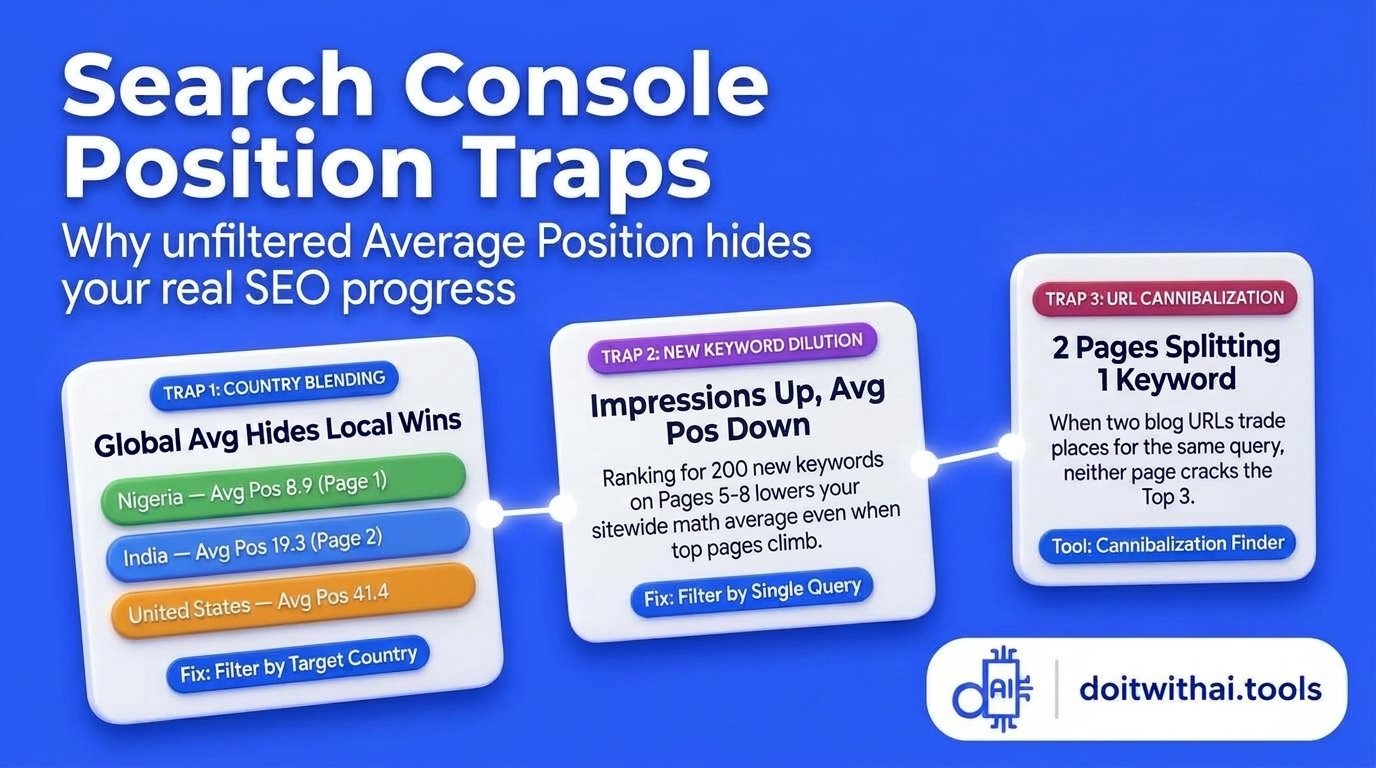
Avoid common Search Console traps like sitewide average dilution, competing internal URLs, and anonymized data limits.
Why Manual Searching in Chrome Incognito Still Shows Biased Rankings
A common piece of advice is to open a Chrome Incognito window, type your keyword into Google, press Ctrl + F, and count where your website appears.
While Incognito mode strips away your logged-in Google account history and browser cookies, it does not show a universal ranking. As experienced SEO practitioners emphasize, an Incognito search is still heavily skewed by:
- Your physical IP address and city: Searching from different regions triggers different Google data centers and localized SERP weighting.
- Your device viewport (Desktop vs. Mobile): Because Google uses mobile-first indexing, a page can rank
#4on Mobile and#9on Desktop at the exact same moment. - Time-of-day SERP testing: Google continuously tests different result orders throughout the day.
How to Run a Clean Manual Spot-Check (When You Have No Other Choice)
Manual Google searches are still hugely valuable for one specific job: seeing the visual layout of Page 1 (such as whether an AI Overview, a YouTube video pack, or a Reddit carousel sits above Position #1). When you do a manual check, follow these four rules:
- Open a private/Incognito window and confirm you are completely signed out of Google.
- Append
&gl=us&hl=en&pws=0to the end of the Google search URL (for example,https://www.google.com/search?q=your+keyword&gl=us&hl=en&pws=0) to set the country to the US (gl=us), language to English (hl=en), and disable session personalization (pws=0). - Check Mobile and Desktop separately using Chrome DevTools (
F12→ Toggle Device Toolbar). - Count only standard organic links—skip Sponsored Ads at the top, "People Also Ask" accordions, and Local Map Packs.
Method 3: How to Find "Striking Distance" Rankings (Positions 8–20) That Turn Into Immediate Clicks
Checking your rank for one keyword at a time is slow. If your website has been live for even 4 to 8 weeks, Google Search Console is already sitting on a goldmine of "Striking Distance Keywords"—search queries where your site ranks between Positions 8 and 20 (the bottom of Page 1 or on Page 2) and earns hundreds of impressions, but gets zero or almost zero clicks.
Because Google already trusts your URL enough to rank it in the top 20 for these queries, optimizing them is the fastest way in SEO to generate new clicks without waiting months for a brand-new post to get indexed.
Step-by-Step: Auditing Your Exported CSV with the Free GSC Striking Distance Finder
Instead of building complex spreadsheet formulas every week, you can audit your entire Search Console export in 30 seconds using the free GSC Striking Distance Keyword Finder on Do It With AI Tools:
- Step 1: Export your Search Console Performance data: In Google Search Console, open Performance → Search results, set the date range to Last 3 months, and click Export → Download CSV in the top-right corner. Google will download a
.ziparchive containingQueries.csv,Pages.csv,Countries.csv, andDevices.csv. - Step 2: Load the file into the tool (100% private in your browser): Open the Free GSC Striking Distance Keyword Finder and drag-and-drop either the downloaded
.ziparchive orQueries.csvdirectly into the upload box. Everything is parsed locally inside your browser tab—nothing is uploaded to any external server. - Step 3: Filter for Positions 8 to 20 and set your minimum impression floor: Keep the default range of Min Position: `8` and Max Position: `20` (or widen it to
6–25), set Min Impressions: `100`, and type your brand name into Exclude Terms so navigational brand searches don't clutter your list. - Step 4: Sort by "Estimated Extra Clicks" or "Lowest CTR First": Toggle between Page 1 Bottom (Pos 8–10) and Page 2 (Pos 11–20) to get an instant, prioritized action plan showing how many extra monthly clicks you could capture if you lift each query to a realistic target CTR (such as
10%).
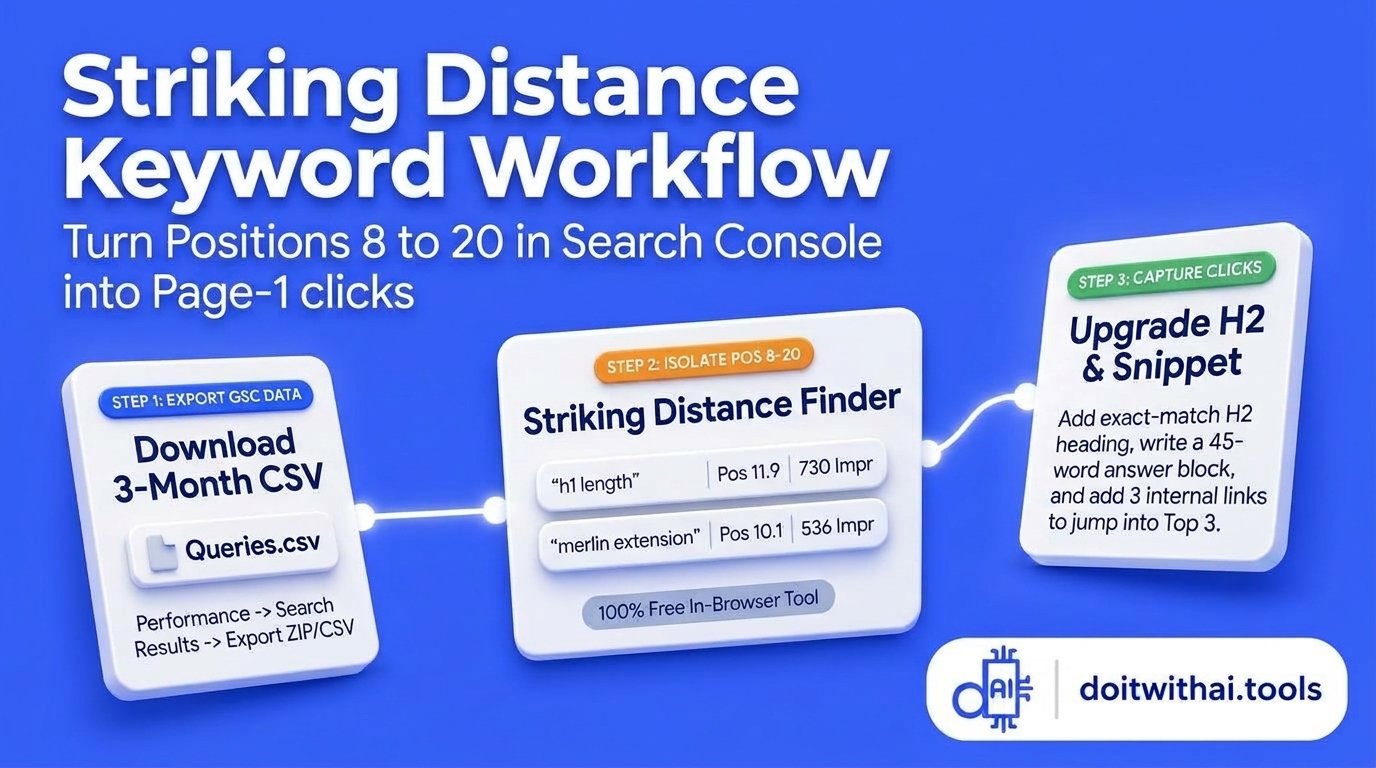
The striking-distance formula: isolate queries ranking in Positions 8–20 and lift CTR to unlock immediate organic traffic gains.
Real Worked Example: Diagnosing High-Impression, Zero-Click Keywords
When the Do It With AI Tools 3-month Search Console export (892 exported queries) was audited through this exact workflow, it revealed why the site was earning thousands of impressions with very few clicks:
Real Striking-Distance Audit from the Do It With AI Tools Search Console Export
| Exported GSC Query | 3-Month Impressions | Clicks (CTR) | Average Position | Ranking Zone & Diagnosis | Exact Optimization Action |
|---|---|---|---|---|---|
what is an h1 header | 347 | 0 (0.00%) | 6.99 | Page 1 (Pos 6–7), Zero Clicks: Ranking on Page 1, but Google's AI Overview answers the basic definition before users scroll. | Rewrite the meta snippet on the H1 Heading SEO Guide to promise copy-paste HTML templates and pixel limits, and add a crisp 45-word answer block at the top to win the AI Overview citation. |
optimize h1 tag | 255 | 0 (0.00%) | 6.30 | Page 1 (Pos 6), Zero Clicks: Strong transactional/how-to intent, but the previous title tag was too generic. | Test a high-contrast title using the GSC CTR Optimizer and link directly to the interactive H1 Heading Generator. |
merlin chrome extension | 536 | 0 (0.00%) | 10.14 | Border of Page 1 / Page 2: Sitting at Position 10 on the Merlin AI Review. | Add a quick-verdict summary box, updated pricing pros/cons, and 3 contextual internal links to push it into Positions 3–5. |
h1 length | 730 | 0 (0.00%) | 11.92 | Top of Page 2 Striking Distance: Highest-impression quick win (730 impressions at Pos 11.9). | Add an exact-match H2: Ideal H1 Tag Length in Characters and Pixels near the top of the H1 Heading Guide. |
why use ai for keyword research | 112 | 0 (0.00%) | 21.30 | Top of Page 3: Ranking on the AI vs. Traditional Keyword Research Guide. | Add a dedicated H2 section with a side-by-side workflow table and link to the ChatGPT Keyword Research Guide. |
Method 4: Professional Platforms for Automated Daily & Competitor Tracking
Google Search Console only tracks websites you verify, and free live rank checkers only check a handful of keywords one at a time. If you run an agency, manage a local business across multiple cities, or want to inspect broad competitor rankings across thousands of keywords, automated tracking platforms offer scheduled daily monitoring:
Overview of Rank Tracking Approaches
| Tracking Category | Best Suited For | Core Rank Tracking Strength | Access Type |
|---|---|---|---|
| Google Search Console | Internal performance & real search queries | 100% verified first-party search query logs across all pages and countries | Free for verified site owners |
| Browser Striking Distance Audits | Finding Positions 8–20 quick wins | Direct calculation of extra clicks and prioritized CTR action zones | Free in-browser utility |
| Public Live SERP Checkers | Immediate spot-checks on any URL | Depersonalized live SERP scan for single keywords in specific countries | Free public lookup |
| Enterprise Scheduled Trackers | Daily automated competitor monitoring | Scheduled daily SERP snapshots, ZIP code localization, and historical tracking | Paid subscription |
The "Position Zero" Problem: Why Google AI Overviews Eat Top Rankings (And How to Get Cited)
In traditional SEO, ranking between Positions #1 and #3 guaranteed a flood of organic clicks. Today, there is a new layer sitting above Position #1: Position Zero (Google AI Overviews).
When a user searches an informational or how-to query—including "how to check ranking for keywords in google"—Google generates a detailed AI summary right at the top of the page. If the user only needs a quick 3-step answer, they read the AI Overview and never scroll down to click the traditional organic results. Industry search performance studies show that median Google impressions more than doubled between late 2025 and 2026 while median CTR fell by up to 40% due to zero-click SERP features and AI Overviews.
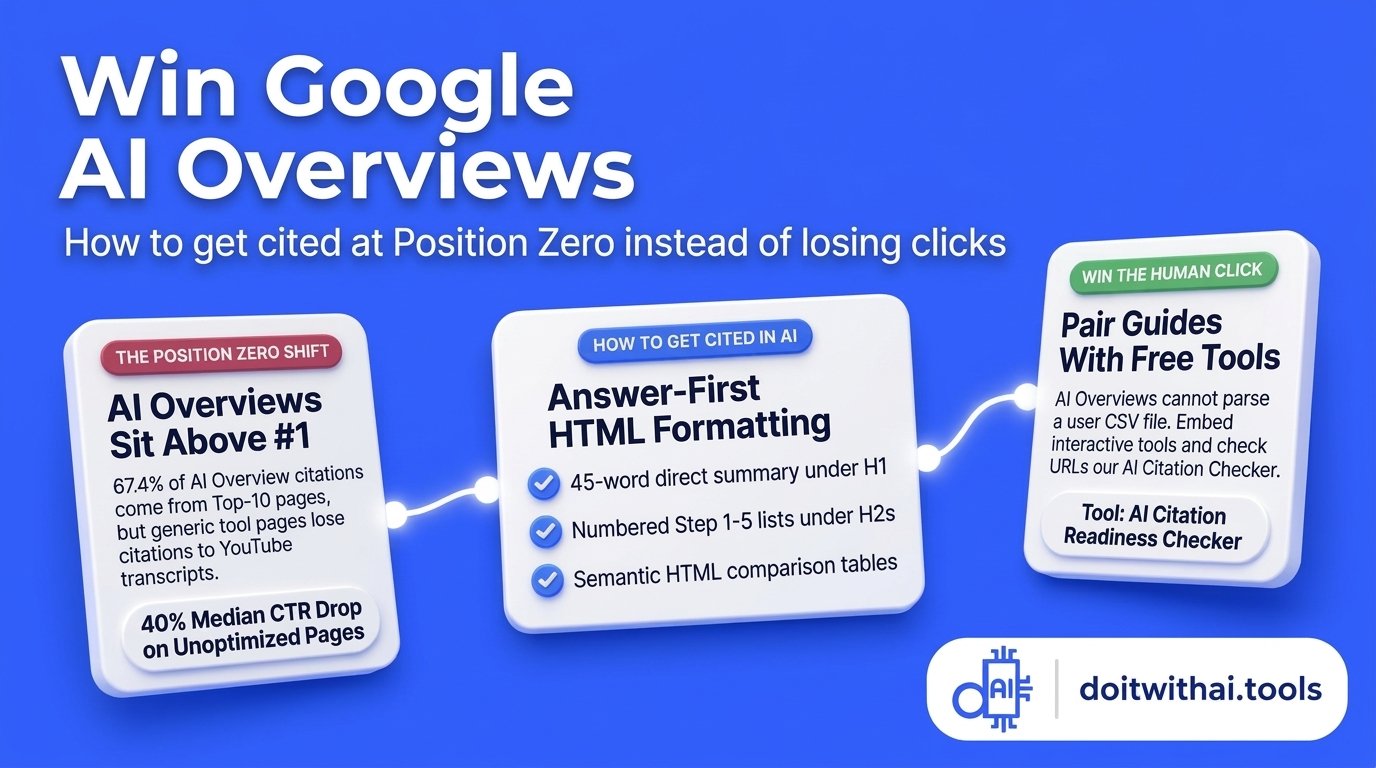
Win Position Zero citations by pairing direct 45-word opening answer blocks with structured HTML tables and interactive utilities.
How to Tell If an AI Overview Is Stealing Your Clicks
Here is the strategic secret most bloggers miss: traditional Google rankings and AI Overview citations are directly connected. Generative search research across hundreds of high-value digital marketing and SEO queries reveals that over 67% of URLs cited inside Google AI Overviews already rank in Google's Top 10 organic results.
Even more revealing: when you inspect the live AI Overview for "how to check ranking for keywords in google", notice who Google cited for the step-by-step Search Console instructions—video tutorials with clear transcripts rather than tool landing pages! Why? Because many tool landing pages only placed an input box on the page without writing clean, step-by-step HTML instructions that Google's LLM could extract.
5 Steps to Optimize Your Content for Google AI Overviews (Position Zero)
Instead of letting AI Overviews eat your traffic, structure every article so Google cites your page inside the AI Overview and gives searchers a compelling reason to click through (learn more in the complete guide on What Is AI SEO and How AI Search Works):
- Write a "First-Fold Direct Answer Block" (40–60 Words Immediately Under Your H1): Before telling a long story, answer the core query in your very first paragraph using clear categories or a numbered list—just like the opening of this guide. Start every post with the Blog Introduction Guide framework so both human readers and LLMs get immediate clarity.
- Format Steps as Scannable Bullet Lists Under Question-Matched H2/H3 Headings: Google's AI Overview parser prioritizes
Step 1 → Step 2 → Step 3lists that sit directly beneath an explicitH2orH3heading. Audit your heading hierarchy before publishing with the free Heading Structure Analyzer. - Include Semantic HTML Comparison Tables (`<table><thead><tbody>`): AI models frequently lift structured comparison tables directly into Position Zero summaries. Always present tool comparisons, pricing, and diagnostic matrices in real HTML tables rather than static images.
- Offer What an AI Overview Can Never Replicate in Text (Interactive Tools & Templates): A user might read a 4-line definition inside an AI Overview and leave—but an AI Overview cannot parse their Search Console CSV file, validate their schema markup, or generate custom titles. Pairing your guides with interactive utilities (like the GSC Striking Distance Keyword Finder or On-Page AI SEO Analyzer) gives searchers a concrete reason to click through.
- Audit Your URL for AI Citation Readiness: Once your draft is live, run the URL through the free AI Citation Readiness Checker and use the curated AI Search, AEO & GEO Visibility Prompts to verify that your entities, citations, and answer blocks are easy for Gemini, ChatGPT, and Perplexity to extract.
How to Improve Your Google Keyword Rankings After Checking Them (The 4-Zone Action Playbook)
Checking your keyword ranking is only diagnostic—traffic grows when you act on what the position number tells you. Once you check your positions in Search Console or the GSC Striking Distance Finder, match every keyword to one of these four zones:
Zone 1: Positions 1–10 with Low CTR (<2%) — Fix Your Snippet Packaging
If your page already ranks on Page 1 (Positions 1 to 10) and earns hundreds of impressions, you do not have a ranking problem—you have a click-through rate (CTR) problem. Searchers are seeing your link in Google results (or below an AI Overview) and choosing another headline instead.
- Rewrite your Meta Title (`<title>`) to promise a concrete outcome, tool, or template: Instead of a flat label like "H1 Tag Guide", use specifics like "H1 Tag Length & SEO Guide (2026 Pixel Limits + Free Generator)". Read the full Meta Title Optimization Guide and test variations in the free Meta Title Generator or GSC CTR Optimizer.
- Upgrade your Meta Description (`<meta name="description">`) within pixel limits: Make sure your description isn't getting truncated mid-sentence on mobile screens. Follow the Meta Description Length & CTR Guide and generate click-worthy copy using the Meta Description Generator or ChatGPT Prompts for Meta Titles and Meta Descriptions.
- Preview how your result looks on Google Mobile & Desktop: Before publishing your new tags, test them inside the free SERP & Rich Result Preview Generator.
Zone 2: Positions 8–10 with Healthy CTR — Strengthen Topical Authority & Internal Links
When a page sits at the bottom of Page 1 (Positions 8 to 10) and already gets a solid CTR, Google likes your snippet—it just needs stronger on-page evidence and internal link equity to crack the Top 3:
- Point 3 to 5 contextual internal links from related articles on your site: Internal links with descriptive anchor text pass authority and help Google understand which page is your primary hub. Find exact linking opportunities across your site using the free Internal Link Opportunity Finder and Internal Link Anchor Auditor.
- Add first-hand evidence, original data tables, and E-E-A-T signals: Replace generic filler sentences with real test data, screenshots, and verified external citations. Audit your page's depth with the Information Gain Auditor, Content Evidence Review Tool, and E-E-A-T Content Auditor.
Zone 3: Positions 11–15 (Top of Page 2) — Add Answer-First Sections & Schema
Keywords sitting at Positions 11 to 15 are your highest-ROI striking-distance opportunities. Often, your page ranks at #12 for a query simply because it never explicitly answers that exact phrase in a dedicated subheading.
- Align your H1 and add a dedicated H2/H3 matching the query: Check the H1 Heading SEO Guide to ensure your main heading is crystal clear, then add a new
H2orH3section that uses the exact striking-distance query and answers it in 2–3 direct sentences right underneath. Map out missing subtopics with the Article Outline Generator and Semantic Entity Gap Analyzer. - Keep your URL slug short and keyword-focused: If you are publishing a new page or consolidating an old draft, avoid long, bloated URLs. Follow the How to Write SEO-Friendly Slug URLs Guide and generate clean paths with the Slug Generator.
- Add valid Schema Markup (`Article` & `FAQPage`) and Descriptive Image Alt Text: Help search engines and AI engines parse your page structure by following our Schema Markup Optimization Guide, generating JSON-LD in the Schema Markup Generator, validating it in the Structured Data Validator, and adding descriptive image attributes using the AI Alt Text Generators Guide and Image Alt Text Generator.
- Keep your writing easy to scan: Dense walls of text increase bounce rates. Check your draft with the Readability Checker and explore the best tools in the AI Readability Tools Guide.
Zone 4: Positions 16–30+ — Fix Search Intent Mismatches & Keyword Cannibalization
When a keyword is stuck between Positions 16 and 35, tweaking a meta tag won't be enough. One of two structural issues is holding you back:
- Issue A: Search Intent Mismatch: You wrote a beginner informational blog post, but Google's Page 1 for that keyword is 90% interactive calculators, software comparison pages, or product reviews. Verify what Google actually rewards for that query using the free Search Intent Checker and ChatGPT Prompts for Search Intent. If the query deserves its own dedicated page, plan the cluster properly using the What to Do After Keyword Research Guide, ChatGPT Keyword Research Guide, AI Keyword Research Tools Comparison, and Free Keyword Clustering Tool.
- Issue B: Content Decay or Keyword Cannibalization: Either an older article has lost freshness over the last 6 months, or two of your pages are splitting impressions for the same topic. Diagnose declining traffic with the Content Decay & Refresh Analyzer and spot duplicate targeting with the Keyword Cannibalization Finder.
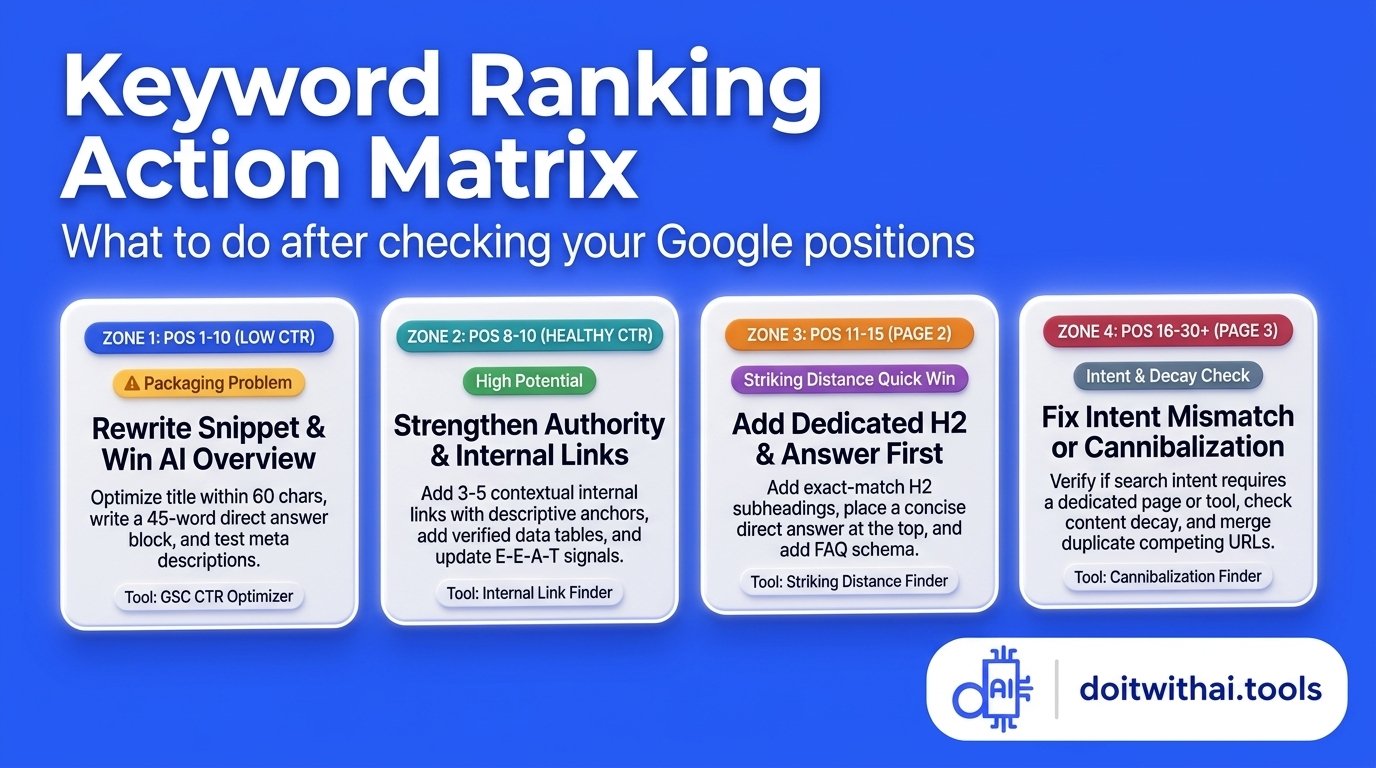
The 4-Zone SEO action matrix: match every ranking position to the exact fix—from title tag CTR tweaks to internal link equity.
Your 15-Minute Weekly Google Rank Tracking Routine
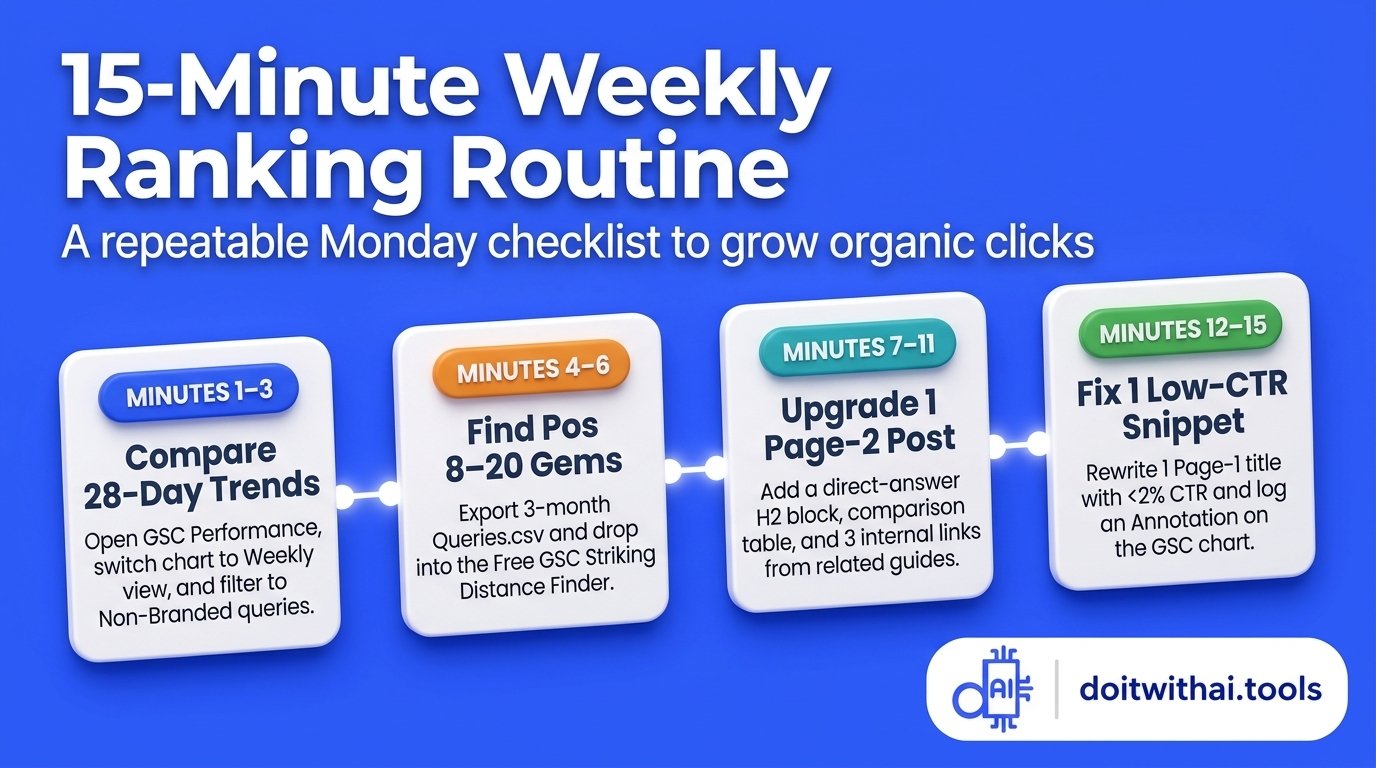
A streamlined 15-minute Monday rank-tracking routine to spot 28-day trends, striking opportunities, and snippet wins without daily noise.
Even Google's official Search Console documentation notes that you do not need to check your rankings every single day. Daily positions bounce up and down naturally as Google tests SERP layouts, and reacting to 24-hour noise often hurts pages that were already climbing.
Instead, follow this 15-minute weekly routine every Monday morning:
- Minutes 1–3 (Compare 28-Day Trends in GSC): Open Google Search Console → Performance → Search results, set the date filter to Compare last 28 days to previous period, switch the chart view to Weekly so weekend dips align, and filter to Non-branded queries.
- Minutes 4–6 (Find Your Top 3 Striking-Distance Queries): Export your 3-month
Queries.csvand drop it into the free GSC Striking Distance Keyword Finder. Filter for Positions 8–20 with at least50–100impressions. - Minutes 7–11 (Upgrade 1 Page Sitting at Positions 11–15): Open the page ranking at the top of Page 2, add a sharp question-matched
H2with a 45-word direct answer block for AI Overviews, and add 3 internal links from related articles using the Internal Link Opportunity Finder. - Minutes 12–14 (Fix 1 Page-1 Snippet with Low CTR): Find one query where you rank between
Positions 1 and 10with a CTR below2%, and rewrite its<title>and<meta name="description">using the GSC CTR Optimizer. - Minute 15 (Log Your Change): Add an annotation on your calendar or audit sheet to log what you updated. In 3 to 4 weeks, compare the before-and-after clicks for that exact URL in Google Search Console.
Frequently Asked Questions
Find quick answers to common questions
For a website you own, Google Search Console is 100% free and provides the most accurate ranking data: open Performance → Search results, click the orange Average position box at the top of the chart, and check the Queries table below. To check a single keyword in live Google search results for any domain without an account, use a depersonalized live SERP checker.
Even in Chrome Incognito mode, Google tailors search results based on your physical IP address (city/region), whether you are on a mobile phone or desktop computer, and real-time SERP experiments. Meanwhile, Google Search Console averages the topmost position of your site across every real user search over your selected date range. Both numbers are real—use a location-specific live rank checker for a single-city snapshot, and trust Search Console for overall ranking trends.
Open Google Search Console → Performance → Search results, enable all four metric cards (Clicks, Impressions, CTR, Position), set the date range to Last 3 months, and sort the Queries tab by Impressions from highest to lowest. You can then export that CSV and upload it into the free GSC Striking Distance Keyword Finder on Do It With AI Tools to automatically filter out your highest-potential Page-1 and Page-2 keywords.
A sudden drop in your sitewide Average Position accompanied by rising impressions is usually a positive sign. When Google begins testing your pages for hundreds of brand-new keywords at Positions 40–80, those new impressions pull down your overall sitewide average even if your top-performing keywords stayed at Position #1 or #2. Always filter by a specific query or page before evaluating average position.
Yes, but Google does not separate AI Overview citations into a standalone filter. When your webpage is cited as a source link inside a Google AI Overview or AI Mode, Search Console records those impressions, clicks, and positions inside the standard Web search type in your Performance report. To maximize your chances of getting cited in Position Zero, structure your content with a 40–60 word direct answer in the first fold and test your URL with the free AI Citation Readiness Checker.
Because Google Search Console only lets you view properties you verify, you need an external index or live SERP checker to inspect competitors. For a quick spot-check on target keywords, enter the competitor's URL into a public SERP checker. For historical tracking across thousands of competitor queries, use dedicated keyword research and monitoring platforms.
Striking distance keywords (also known as low-hanging-fruit keywords) are search queries where your website already ranks between Positions 8 and 20 (bottom of Page 1 or on Page 2) with steady impressions. Because Google already considers your page relevant to the topic, improving the subheadings, snippet CTR, and internal links on those pages typically moves them into the Top 5 much faster than publishing a brand-new article from scratch.
For most websites, checking rankings once a week (comparing the last 28 days against the previous 28 days on a weekly chart view) is the sweet spot. Check daily only after a site migration, a major technical overhaul, or a confirmed Google Core Update.
Still have questions? Contact our support team for personalized assistance.
Sufian Mustafa
Sufian Mustafa is an AI SEO Strategist, Developer, and the founder of Do It With AI Tools.
Following an 18-month deep-dive into AI-assisted development, Sufian built this platform from the ground up to serve as a hub for battle-tested workflows and practical AI resources.
By combining technical expertise with advanced prompt engineering, he builds high-performance content engines optimized for modern AI search (GEO/AEO)
Mission: Help creators 10x their productivity using the same strategies he uses to maintain 99% technical SEO health and top rankings.